A weekend project for Microsoft Teams

Stop the knock
before it happens.

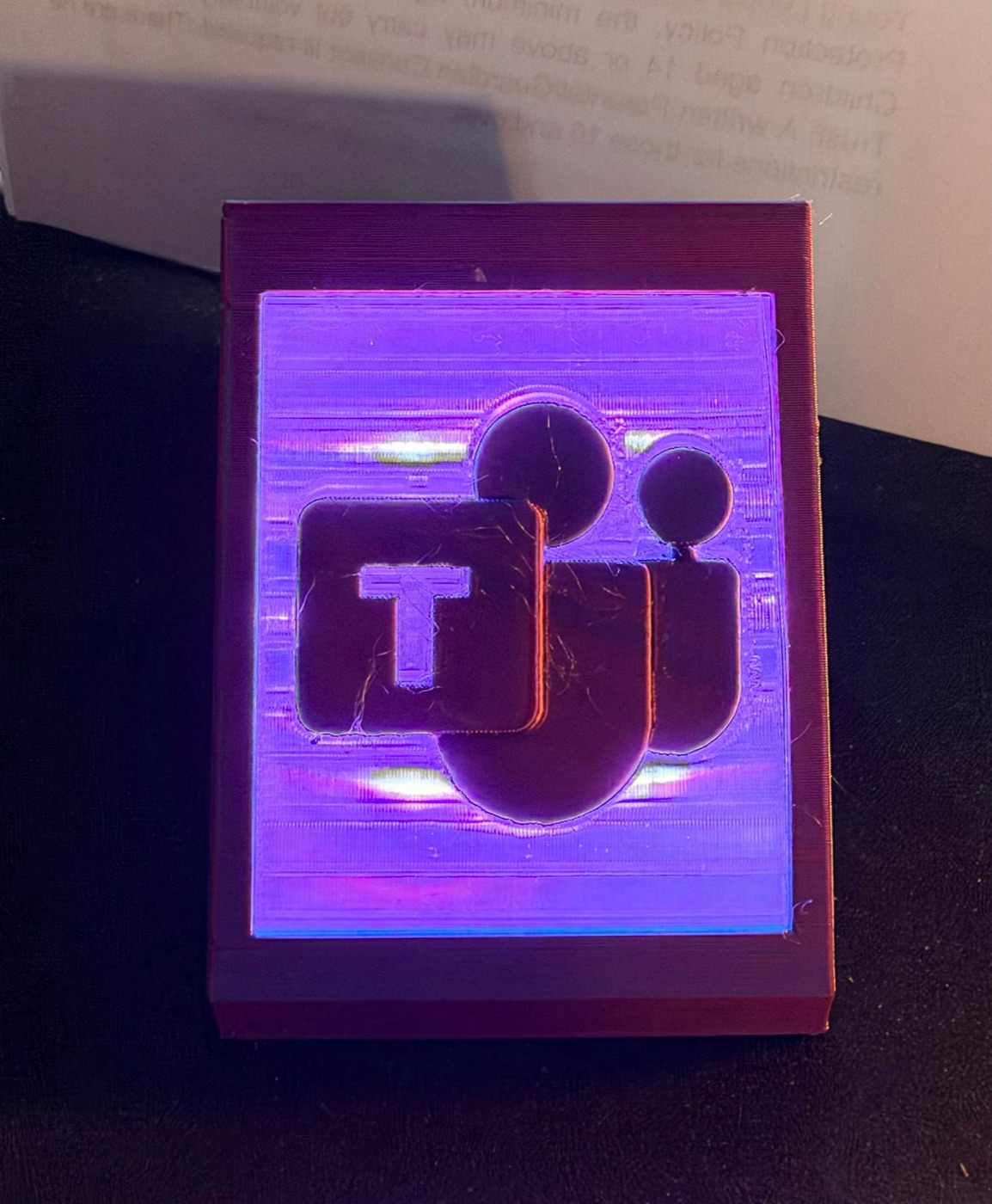
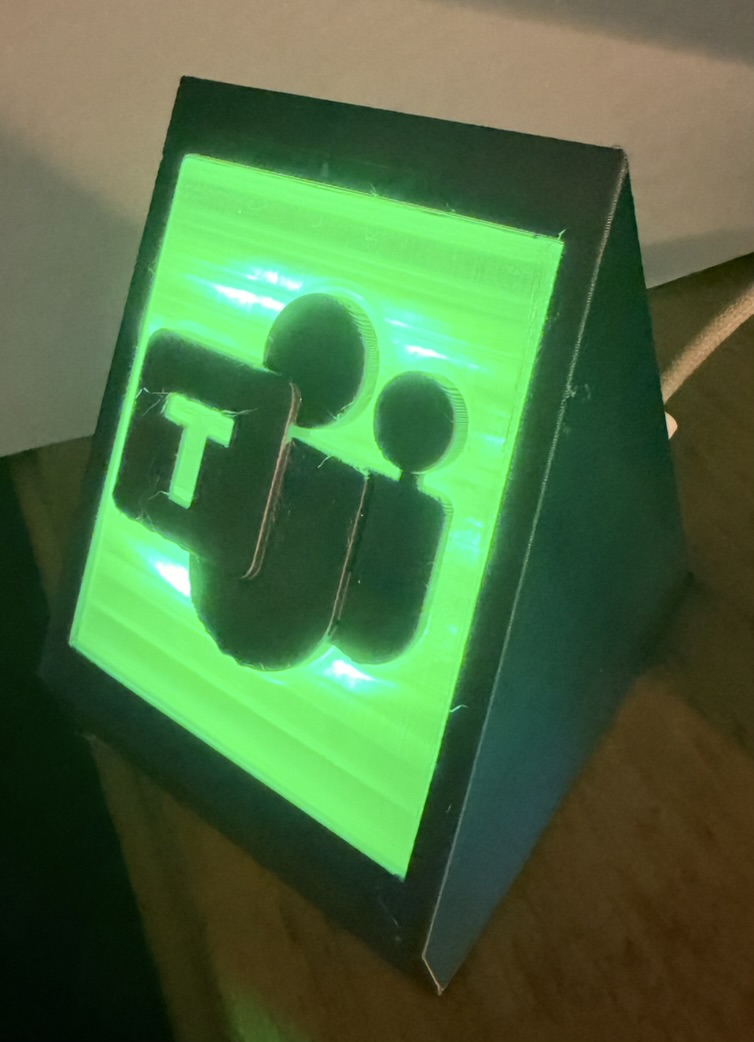
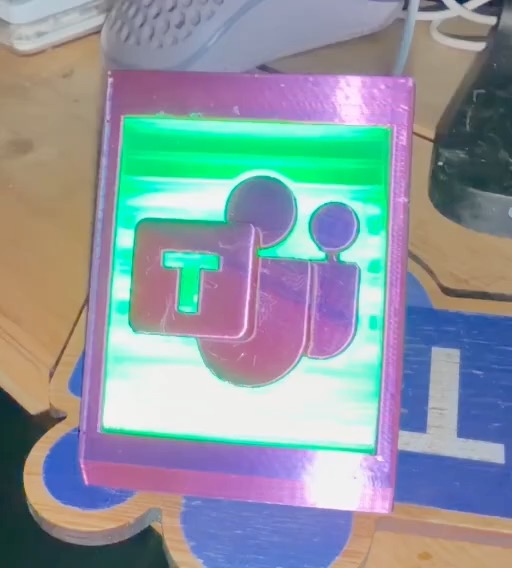
I built a small desk light that follows my Teams status: green when I'm free, red when I'm in a call, purple for do not disturb. Here's everything you need to make your own: the 3D-print files, the parts list, the firmware and the Mac app.
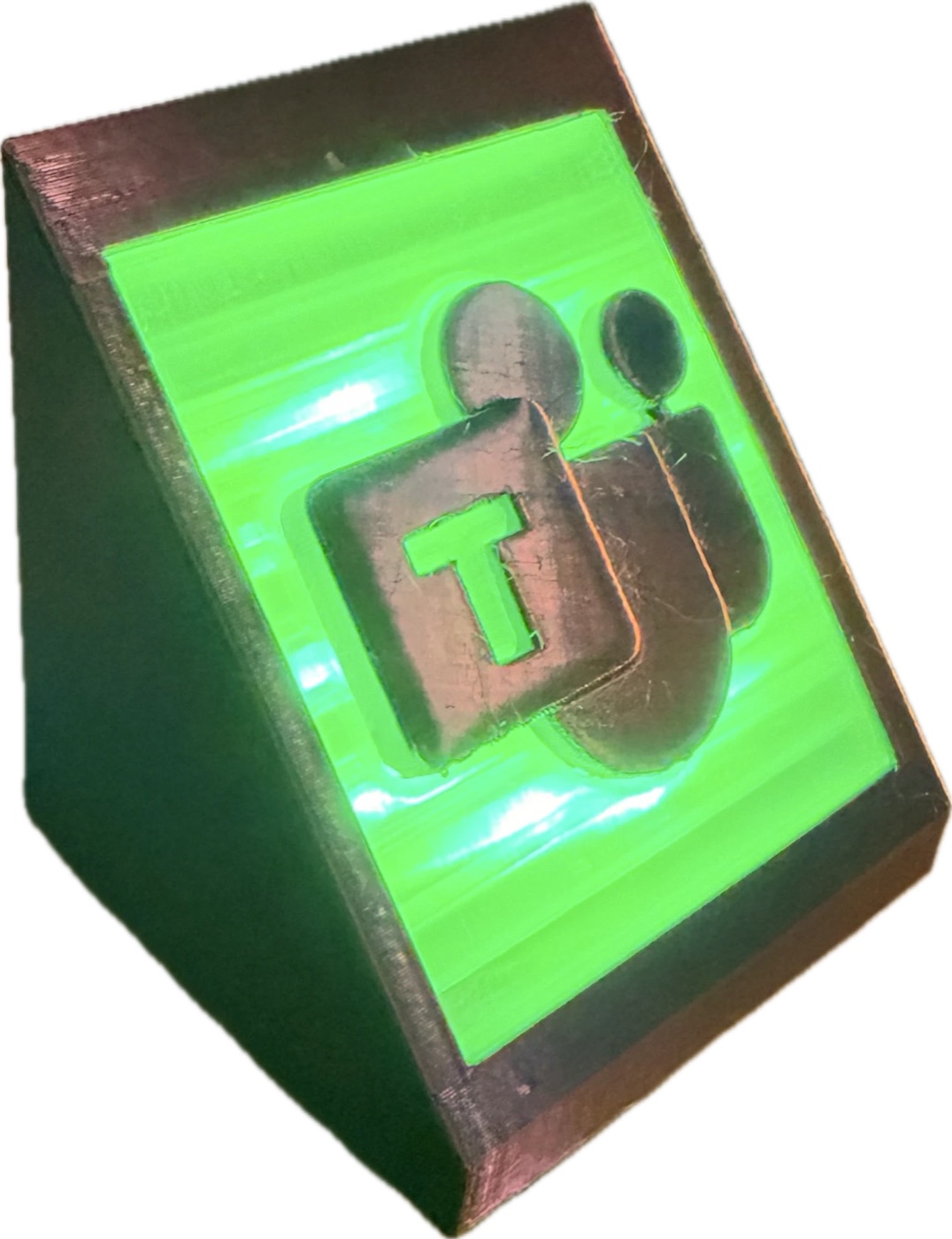
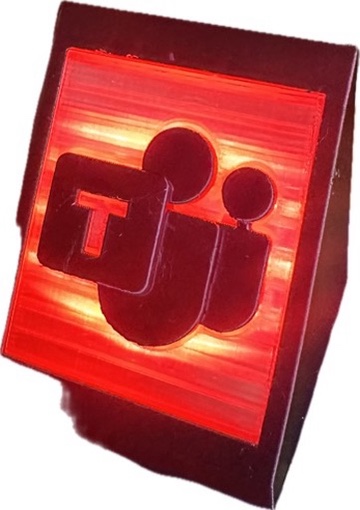
Busy Light glowing green, showing Available Busy Light glowing red, showing Busy Busy Light glowing purple, showing Do not disturb

Every status, in colour

It changes the moment your status does.

No buttons to press and nothing to remember. Join a call and it turns red. Hang up and it goes back to green.

AvailableGreen
BusyRed
In a call or meetingRed, slow pulse
Do not disturbPurple
Away / Be right backAmber
OfflineOff, and off when your Mac sleeps

Plug it in

One USB cable straight into your Mac. It's powered by the same cable.

Open the app

A small menu-bar app shows your status and lets you set brightness or pause the light.

Get on with your day

The light follows Teams on its own. No sign-in, and no IT admin approval needed.

Take it apart

Small, solid, and made to glow.

A 12-LED ring sits behind a translucent plate, with the logo raised in front so it stands out against the light. Drag to turn it, and pull it apart to see inside.

Loading 3D model…
Drag to rotate · scroll or pinch to zoom

Light

View

Spin

Size

Width60 mm Depth55 mm Height63 mm Window52 × 62 mm LEDs12, full colour

Build your own

Five steps, one afternoon of tinkering.

You'll need a 3D printer, a soldering iron and a Mac. No coding: the firmware and app are ready to use.

1

Get the parts

These are the parts I used. Any equivalent works. The ring needs to be 50 mm across with 12 LEDs so it fits the insert.

As an Amazon Associate I earn from qualifying purchases. Buying through these links costs you nothing extra and helps keep this project going.

2

Print the case

Four parts. The colours matter more than the settings: the plate has to let light through, and the logo should block it so it stands out.

3

Wire it up

Three wires from the LED ring to the RP2040-Zero. Leave the ring's OUT pad unconnected.

LED ring padRP2040-Zero pinNotes
5V5VThrough the 1N4001 diode, stripe towards the ring
GNDGND
INGP29Optional 330 Ω resistor in line
Why the diode? The board sends 3.3 V data to 5 V LEDs, which is borderline. Dropping the ring's supply slightly with the diode stops flicker and wrong colours.
4

Load the firmware

  1. Download the RPI_PICO .uf2 file from micropython.org.
  2. Hold BOOT on the RP2040-Zero, plug it into your Mac, then let go. A drive called RPI-RP2 appears.
  3. Drag the .uf2 file onto that drive. The board restarts by itself.
  4. Download main.py and copy it onto the board from Terminal:
    pip3 install mpremote
    mpremote cp ~/Downloads/main.py :main.py + reset
When it starts, a white dot runs once around the ring. That means the wiring and firmware are working.
5

Install the Mac app

  1. Download TeamsLight.dmg, open it and drag Teams Light into Applications.
  2. Open it. The app isn't from the App Store, so the first time macOS will refuse. Go to System Settings → Privacy & Security and click Open Anyway.
  3. If macOS asks whether Teams Light may access data from other apps, click Allow. That's how it reads your Teams status.
  4. Plug the light straight into your Mac, not through a hub or dock. A coloured dot appears in the menu bar.
Needs macOS 13 or later and the new Microsoft Teams. Works on Apple silicon and Intel Macs.

Downloads

Everything in one place.

Specs

The finished light

Light
12-LED full-colour ring behind a diffusing plate
Size
60 × 55 × 63 mm, angled face for desks and shelves
Brains
RP2040-Zero running MicroPython
Connection
USB-C, powered by your Mac
Works with
The new Microsoft Teams on macOS 13+
App
Menu-bar app with brightness, pause, test colours and start at login
Privacy
Reads only your status. Nothing leaves your Mac and there's no Microsoft sign-in.

FAQ

Good questions

Does it work on Windows?

Not yet. The app runs on macOS only.

Do I need my IT team to set anything up?

Usually not. The app reads your status from Teams on your own Mac, so there's no admin approval or app registration. Some company-managed Macs block apps from reading other apps' data. If yours does, the light shows a dim blue instead of a status.

Do I need to know how to code?

No. You flash two ready-made files and install an app. The fiddliest part is soldering three wires.

The light stays dark. What should I check?

Plug it straight into the Mac, not a hub or dock, since some only pass power. Check the data wire is on GP29. Check that a white dot runs round the ring when you plug it in. If it doesn't, the firmware isn't running.

Will it ever show green by mistake?

No. If the app can't tell your status, it shows a dim blue pulse rather than guessing.

Can I buy one ready-made?

Not right now, but I'm working on it.

My parts

The exact parts I used.

These are the ones in my lights. Several come in multi-packs, so you'll have spares or enough to build a few.

As an Amazon Associate I earn from qualifying purchases.